Verdict
The short version
Routine maintenance still matters because dust, blocked airflow, low storage, and bloated startup load create many of the "my PC feels old" problems people misread as fatal hardware decline.
 Our Method
 Evergreen maintenance guide
A practical maintenance guide for keeping a desktop or laptop healthy: clean the vents safely, clear storage pressure, cut pointless startup load, and know when routine upkeep is no longer enough.
Verdict
Routine maintenance still matters because dust, blocked airflow, low storage, and bloated startup load create many of the "my PC feels old" problems people misread as fatal hardware decline.
Best for
Owners of desktops and laptops that still basically work but run hotter, louder, or slower than they should and need a sensible maintenance reset before spending on repairs or replacement.
Skip if
The machine has obvious hardware failure, repeated crashes, battery swelling, a damaged charger, or no display at all. Maintenance is not a substitute for repair when the problem is already physical.
Key takeaways
Many aging PCs do not need immediate replacement. They need basic care that stopped happening somewhere between browser-tab sprawl, dust accumulation, and a year of ignored updates.
Dell’s current maintenance guidance still treats regular cleaning and vent care as core upkeep, not cosmetic fussing, because airflow restriction turns into heat, fan noise, and reduced performance surprisingly quickly.How to Clean and Maintain Your Dell Computer How to Clean Air Vents
That is the right starting point for a modern PC cleaning guide. Before chasing miracle utilities or panic-buying replacement parts, restore the basics.
The safest maintenance work is boring:
Dell’s current cleaning article is explicit about avoiding direct liquid spray, keeping moisture away from ports and internals, and using compressed air to clear vents rather than treating the system like a countertop appliance.How to Clean and Maintain Your Dell Computer
That matters because a sloppy cleaning session can create a second problem while you are trying to solve the first one.
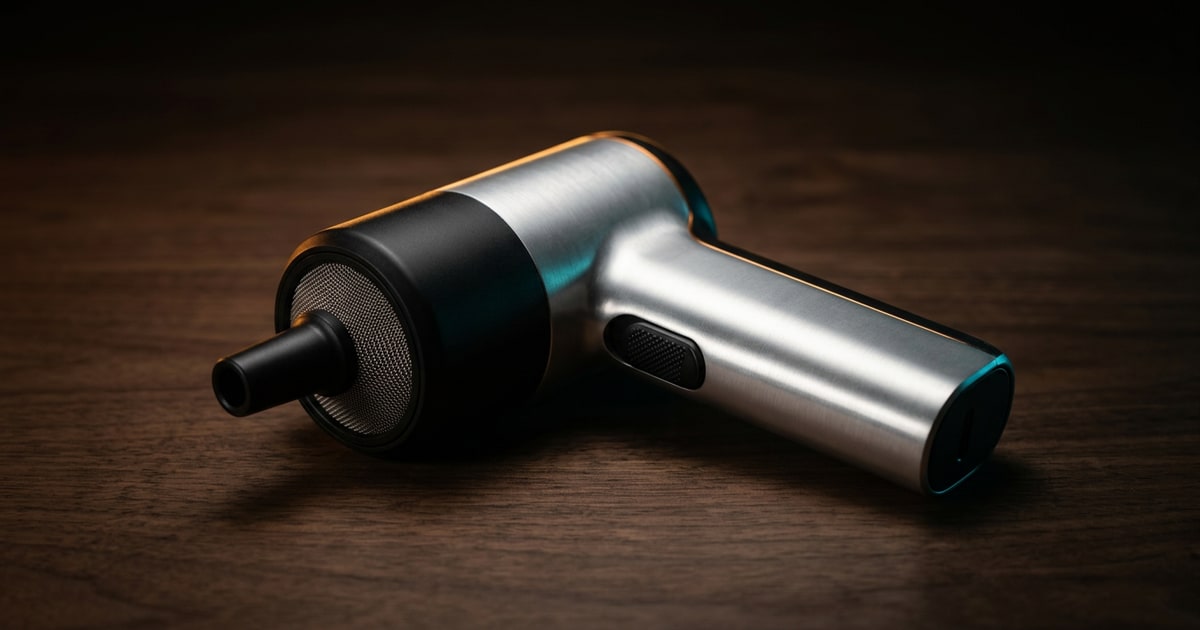
The maintenance step with the highest practical payoff is usually vent cleaning. Dell’s current air-vent instructions are simple for a reason: dust buildup around vents and fan paths is one of the easiest ways to make a healthy machine run hotter and noisier than it should.How to Clean Air Vents
Dell’s fan-troubleshooting guidance makes the same point from the other direction. If the system is constantly hot or the fans are always loud, restricted airflow is one of the first things worth checking before you start imagining exotic faults.How to Troubleshoot Fan Issues
Good maintenance questions are therefore:
If the answer is yes, clean first and judge performance after.
A useful computer maintenance guide cannot stop at dust. Microsoft’s current Windows performance advice still prioritizes the things that most often make normal PCs feel tired:
That is not glamorous guidance, but it is durable because it addresses the usual causes of sluggishness instead of pretending every slow PC needs registry folklore or random cleanup software.Tips to improve PC performance in Windows
If the machine is short on space, overloaded at startup, and running outdated software, the right fix is maintenance discipline before hardware shopping.
For most desktops and laptops, the sensible order is:
That sequence is useful because it separates neglect from real faults. If the machine improves, the issue was probably maintenance debt. If it does not, you have at least removed the easy noise from the diagnosis.
The goal is not to spend a whole afternoon polishing a machine that may have a real fault. A useful first pass should answer four questions quickly:
If the answer to the first three is yes and the fourth is still yes, stop treating the issue as ordinary maintenance. The next step is diagnosis: storage health, memory stability, thermal behavior, or power stability.
Maintenance has limits. It will not repair:
That is why maintenance should be treated as the first pass, not the universal answer. It is the right move when the PC still basically works and just feels compromised. It is the wrong move when the hardware is already failing in an obvious way.
If cleaning and software maintenance do not solve the issue, move into hardware triage. Start with internal SSDs when storage health or space is the problem, desktop memory when multitasking is still constrained, CPU coolers when heat and dust keep returning, and power supplies when instability points beyond routine upkeep.
The old computer maintenance category still deserves a modern answer because maintenance remains one of the highest-value support topics on the web. Clean airflow, sane storage habits, updates, and startup control are still the most honest first steps for a machine that feels older than it should. Good upkeep will not resurrect dead hardware, but it still solves a surprising amount of ordinary PC misery.
FAQ
Power it off, disconnect power and accessories, and use a microfiber cloth plus compressed air as needed. Do not spray liquid directly onto the machine, and do not clean it while it is powered on.
Yes. Dust can block vents and reduce cooling efficiency, which raises temperatures and can lead to louder fans, more thermal throttling, and worse sustained performance.
No. Maintenance helps with neglect-related problems like heat, storage pressure, and startup bloat, but it does not cure failing hardware or a machine that is simply too underpowered for the workload.